Stream Overlay for OBS: Counters, Widgets and Chat Control
A stream overlay for OBS: one source with counters (deaths, wins, kills), chat control and an AI overlay art generator for your brand. How to set it up.
 Pavel··4 min read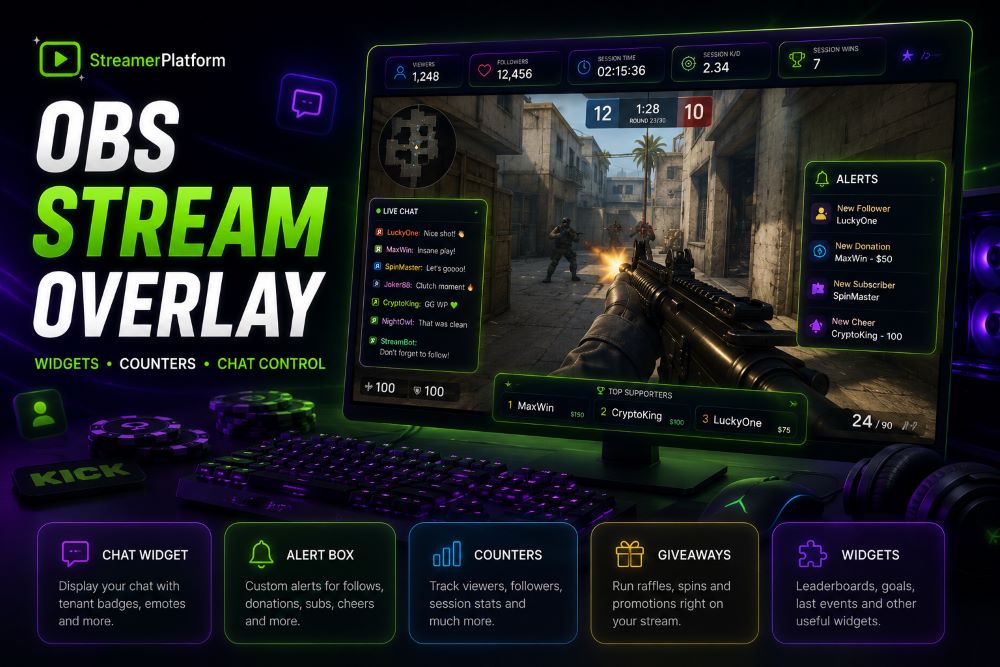
A good stream overlay is not a pile of separate plugins but one tidy scene over your game: counters, chat events, a timer and widgets in a single style. Let us see how to build such an overlay for OBS, track deaths and wins straight from chat, and generate artwork that matches your brand.
What a stream overlay should do
Before you build the scene, keep a short checklist in mind. A handy overlay should:
add to OBS as a single source, not a dozen;
have a transparent background and update itself, with no reload;
show game counters (deaths, wins, kills);
be controllable straight from chat by a moderator;
look like your brand.
One overlay instead of many sources
On our platform the overlay is a single Browser Source. You add one link to OBS and everything is composed inside: the counters block, a secondary widget, an events feed and a header with a clock and session timer.
What is inside:
the counters block as the main content (for the gaming category);
a secondary widget (chat, giveaway, prediction) above or below the counters;
an events feed: latest follows, subs and donations, rotating every few seconds;
a header with your logo, a clock and a stream timer.
The background is transparent and the overlay refreshes itself every couple of seconds, so you never reload the source in OBS.
Counters right on the overlay
Counters are the main tool of a gaming overlay. First you pick the game you are tracking:
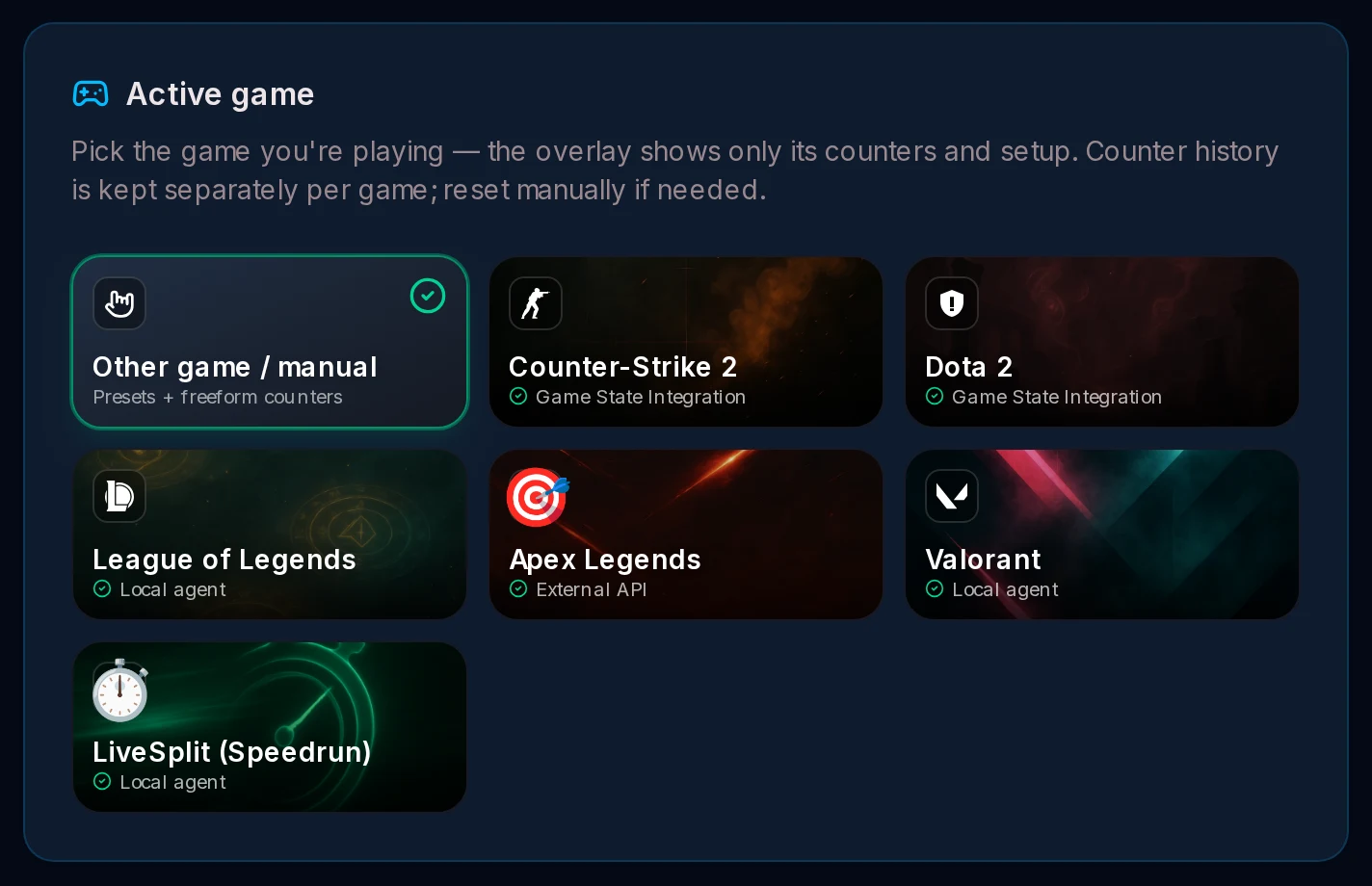
Choose Other game / manual for hand-driven counters, or a specific game with auto-fill, for example Counter-Strike 2 via Game State Integration. Each game keeps its own counters.
Then you add counters: from one-click presets or your own.
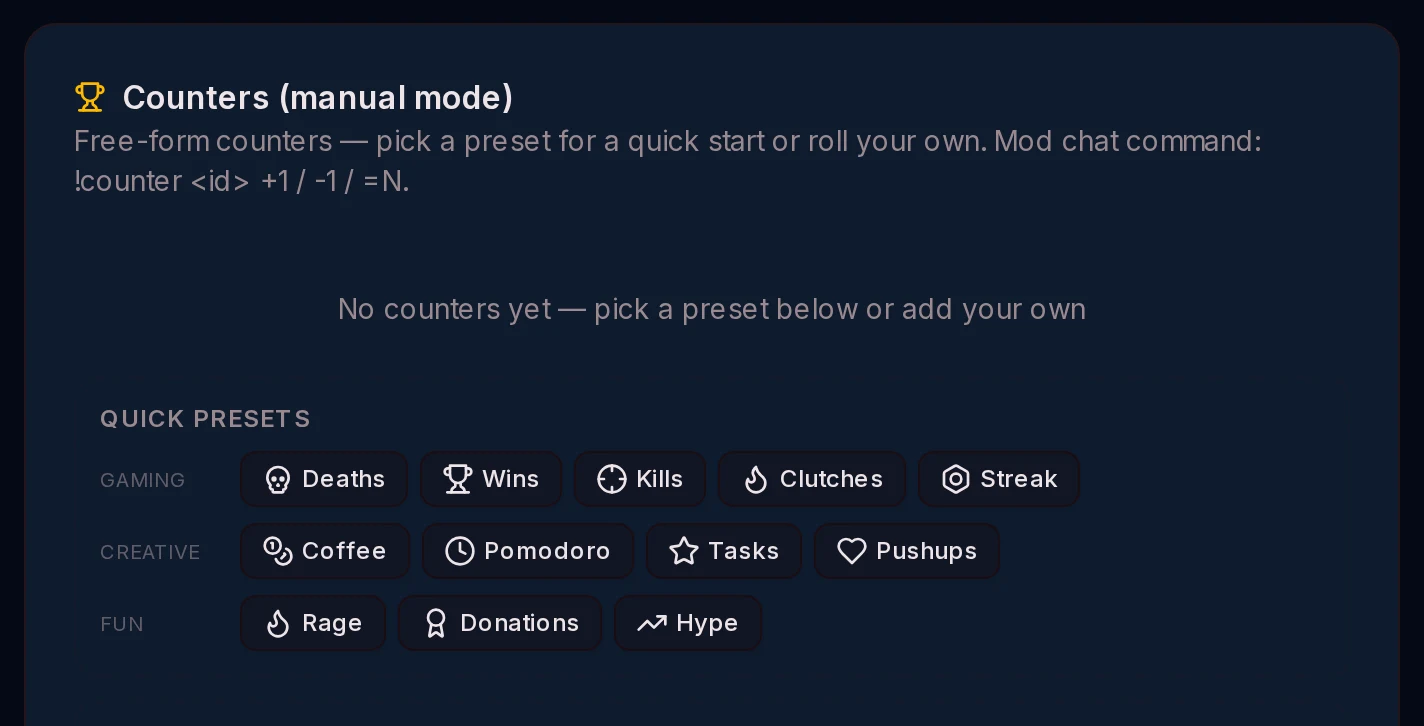
gaming: deaths, wins, kills, clutches, streak;
creative and IRL: coffee, pomodoro, tasks, pushups;
community: rage, donations, hype.
The overlay shows up to 8 counters, each with an icon, a value and a per-session delta (green plus or red minus).
Control the overlay from chat
You can change counters and the overlay itself straight from chat on Kick, Twitch or YouTube. Moderator or streamer commands:
!counter deaths +1: change a counter (+N, -N or =N, for example!counter wins -1).!overlay show/!overlay hide: show or hide the overlay;!overlay wheelswaps the secondary widget.!reset: reset the session and zero the counter deltas.
Ready-made widgets for your scene
Besides counters, you can add ready-made widgets to the overlay or as separate sources, all with a transparent background:
on-stream chat;
alerts: follows, subs, donations;
viewer leaderboard;
donations with text-to-speech;
giveaways and a fortune wheel;
predictions on channel points.
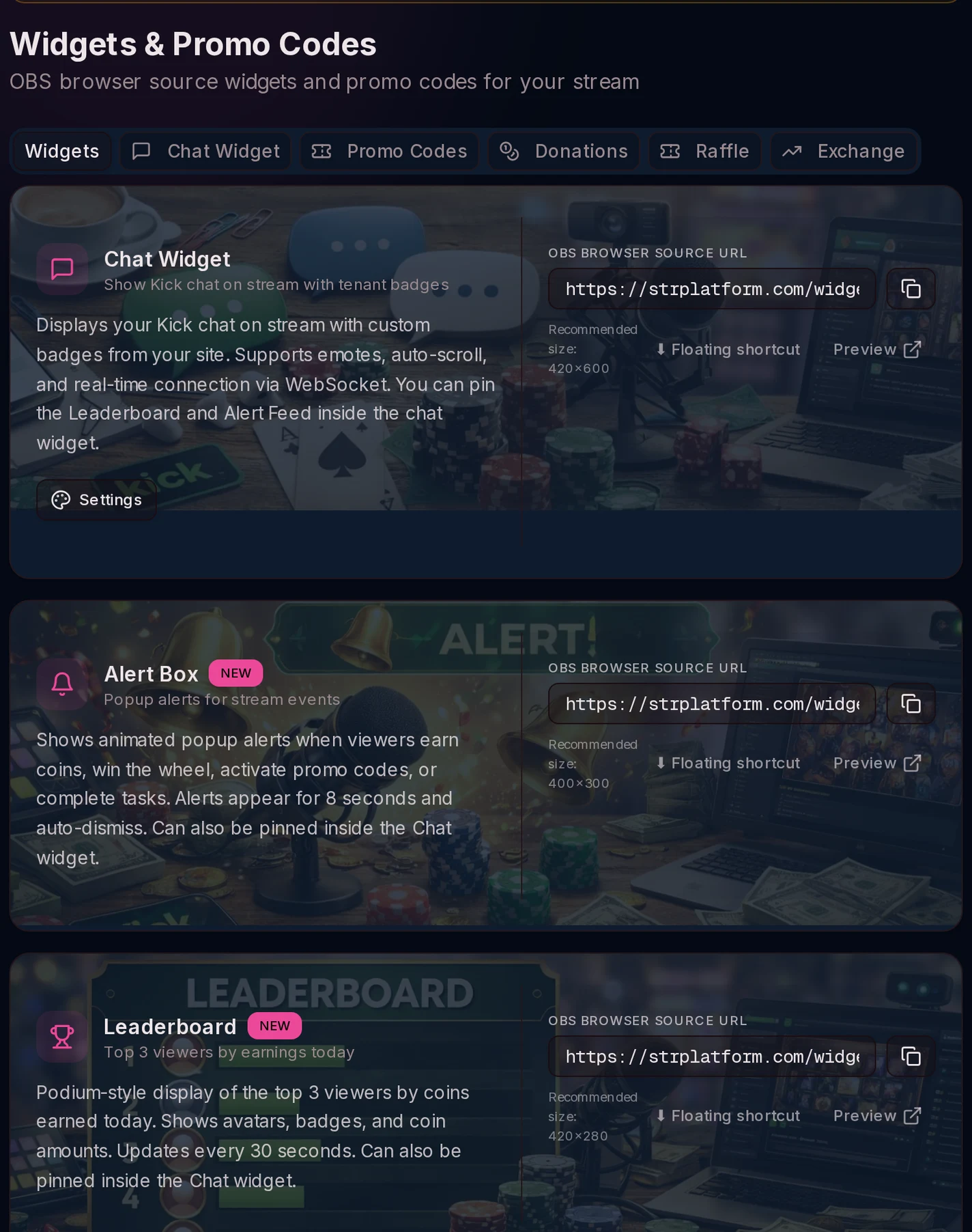
Each widget sits in a catalog with a ready link and a recommended size, and drops into OBS as a Browser Source. We covered the wheel in a separate article.
AI overlay art generator
If you need artwork and not just data, there is an overlay art generator. It builds two files for a real OBS layout: a background (an atmospheric image with your logo) and frames for the gameplay and the camera in your brand colors.
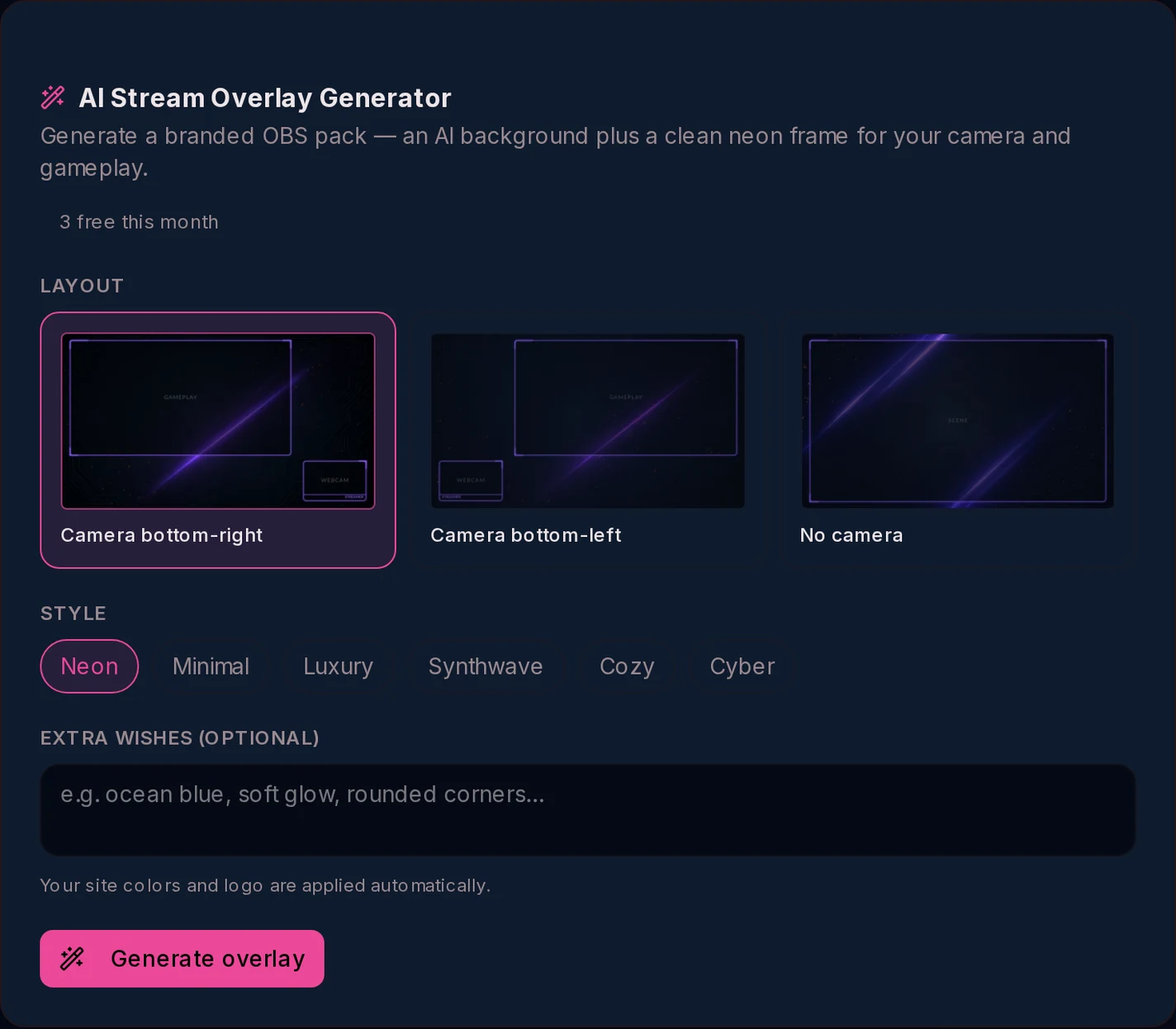
layouts: camera bottom-right, camera bottom-left or no camera;
styles: neon, synthwave, cozy, cyber and more;
your own prompt for the theme.
You get both PNGs and exact coordinates for where to place gameplay and camera in OBS. The frames are drawn in code, so text and geometry are always crisp.
How to connect it to OBS
Setup takes a couple of minutes:
Copy the overlay link (…/widgets/stream-overlay.html) and add it to OBS as a Browser Source.
Pick your game and add counters on the overlay page in the admin panel.
Optionally set a secondary widget and its position (above or below the counters).
Take the other widgets from the catalog with their ready sizes.
For artwork, generate the background and frames and place them by the guide.
All widgets have a transparent background and update by themselves, so you do not reload the sources.
Why this beats a pile of plugins
A usual overlay is assembled from many third-party plugins and sources that each need separate setup and updates. Here everything is in one place:
one source instead of a dozen;
counters and events update with no reload;
control straight from chat;
one brand style plus AI artwork;
works on Kick, Twitch and YouTube.
A stream overlay with counters, widgets and AI artwork is already built into the platform. Create your streamer site and build your OBS scene in a couple of minutes.
See it live
These are the real widgets, looping. Set them up on your own channel in a couple of clicks.
Launch this on your channel
Build your own site on StreamerPlatform: activities, rewards and giveaways work out of the box.
Create your site freeI love streams and I also really enjoy coming up with something new to interact with viewers.